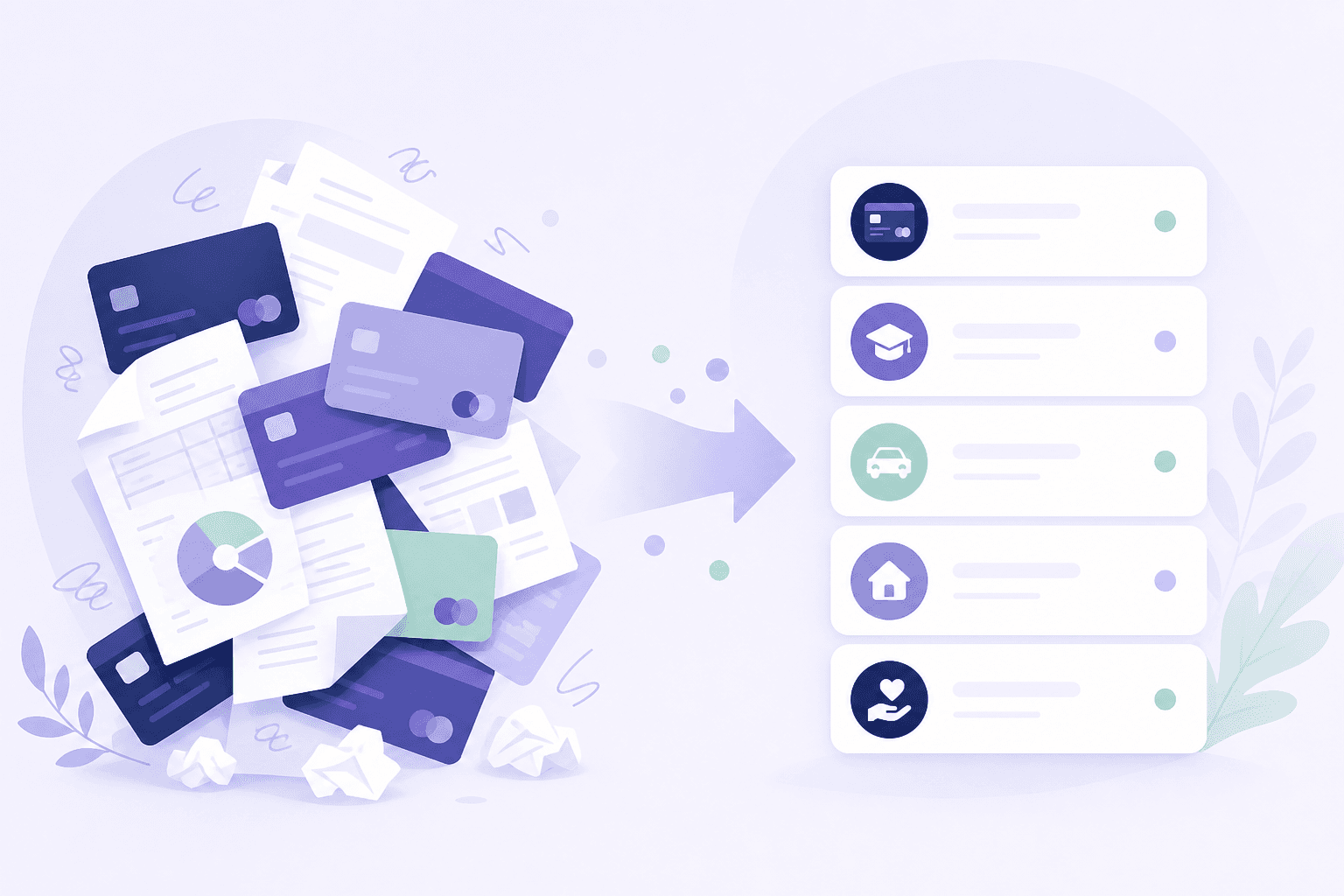
My Debt is your inventory. Add each card or loan with the balance you owe, APR, typed minimum payment, and due day so Plan and Payments stay honest. Pay-later purchases use a different form for provider, merchant, and installment schedule.
Open Add account from My Debt
Use Add account for a new card, loan, or pay-later purchase. Edit a row when a statement changes the balance, APR, or min. Tags like Your focus and Includes Extra appear after Plan is set.

If a typed minimum is below this month's interest, you will see a warning.
On this screenshot
- 1Add account (button stays clear on the right)
- 2Total debt summary
- 3Accounts list and Edit
Choose Debt account, then the closest type (credit card, personal loan, student loan, and so on). Fill the statement numbers below. Promo rates live under More details.
Fill a debt or loan
Name is a nickname you will recognize. Current balance is what you still owe. Regular APR can start as an estimate. Minimum payment is from your statement. Due day lands on your Payments calendar.

Open More details when you have a promo APR with an end date.
On this screenshot
- 1Name
- 2Current balance
- 3Regular APR
- 4Minimum payment
- 5Due day
- 6Save account (pin left of the button)
For Klarna, Afterpay, Affirm, and similar, choose Pay-later instead of Debt account. Enter the purchase details so we can build the installment schedule.
Fill a pay-later purchase
Provider is who you pay. Merchant is where you bought it. Order total is the full purchase price. Match Payment plan and First payment due to what your provider app shows.

The preview under the form shows the next installment amount before you save.
On this screenshot
- 1Provider
- 2Merchant
- 3Order total
- 4Payment plan
- 5First payment due
- 6Save purchase (pin left of the button)
- Include promo APR fields when a temporary or deferred rate has an end date.
- Refresh balances when statements arrive.